
Linux tutorials and forums use technical vocabulary that feels impenetrable to newcomers. Words like “kernel”, “daemon”, “inode”, “mount”, and “symlink” appear without explanation, as though every reader already knows them.
This glossary defines 50 essential Linux terms in plain English — organized by topic so related concepts build on each other. Bookmark it and return whenever a tutorial loses you.
Core Concepts
Kernel The kernel is the central program of the Linux operating system. It manages your hardware — CPU scheduling, memory allocation, device drivers, network connections — and provides these resources to software applications. The kernel runs in the background at all times. You never interact with it directly; other programs use it transparently.
Distribution (Distro) A complete operating system built around the Linux kernel. Ubuntu, Fedora, Debian, Linux Mint, Arch Linux, and Pop!_OS are all distributions. They share the same kernel but differ in desktop environments, default software, package managers, and target audience. “I use Linux” usually means “I use a Linux distribution.”
Open Source Software whose source code is publicly available, readable, and modifiable by anyone. Linux is open source under the GNU General Public License (GPL). Open source allows independent security auditing, community contributions, and freedom from vendor lock-in. Not all Linux distributions are identically open — some include proprietary drivers.
FOSS Free and Open Source Software. The “free” refers to freedom (to use, modify, redistribute) rather than price, though FOSS software is almost always free of charge as well. Linux, LibreOffice, Firefox, and GIMP are all FOSS.
Shell A program that interprets your text commands. When you open a terminal and type, the shell reads your input, interprets it (expanding variables, handling pipes), and executes the appropriate programs. Bash is the default shell on most Linux distributions. Zsh and Fish are popular alternatives with additional features like better autocompletion. For hands-on practice, our introduction to the Linux terminal covers the essential commands with real examples.
Terminal / Terminal Emulator A window that provides access to the shell. When you press Ctrl+Alt+T in Ubuntu or Mint and a black window with a prompt appears — that window is the terminal emulator. The terminal emulator communicates with the shell running inside it. “Terminal” and “shell” are often used interchangeably in conversation, though technically they are different things.
CLI (Command-Line Interface) An interface where you interact with software by typing text commands. The opposite of a GUI (Graphical User Interface). The Linux terminal is a CLI. CLI tools are often faster, more powerful, and more scriptable than their graphical equivalents.
GUI (Graphical User Interface) An interface using windows, icons, menus, and a pointer. GNOME, KDE Plasma, XFCE, and Cinnamon are Linux graphical interfaces. Most Linux distributions include both CLI and GUI tools.
Users and Permissions
Root The superuser account on a Linux system. Root has unrestricted access to everything — every file, every command, every configuration. Running as root permanently is dangerous because a single mistake (or piece of malware) can destroy the entire system. Most Linux distributions discourage direct root login.
sudo
Short for “superuser do.” A command that allows a regular user to execute a single command with root privileges. Example: sudo apt install firefox. The system verifies your user password before executing. Preferable to logging in as root because it requires conscious effort for each privileged action.
User
A named account on a Linux system. Each user has a home directory (/home/username), their own files, and defined permissions. Multiple users can share a single Linux installation, each with separate data and settings.
Group
A collection of users. Files and directories can be owned by a group, granting read, write, or execute access to all group members at once. The sudo group, for example, contains all users who are allowed to use the sudo command.
File Permissions
A three-layer system controlling who can read, write, or execute each file or directory. The three layers are: owner (the user who created the file), group (a named collection of users), and others (everyone else). Each layer has three bits: read (r), write (w), execute (x). Shown as rwxrwxrwx in ls -la output.
chmod
The command that changes file permissions. Example: chmod 755 script.sh sets owner permissions to read+write+execute (7), and group and others to read+execute (5). chmod +x file simply adds execute permission for everyone.
chown
The command that changes file ownership. Example: sudo chown user:group file.txt sets the file’s owner to user and group to group. Requires root privileges to change ownership to another user.
Filesystem
Mount
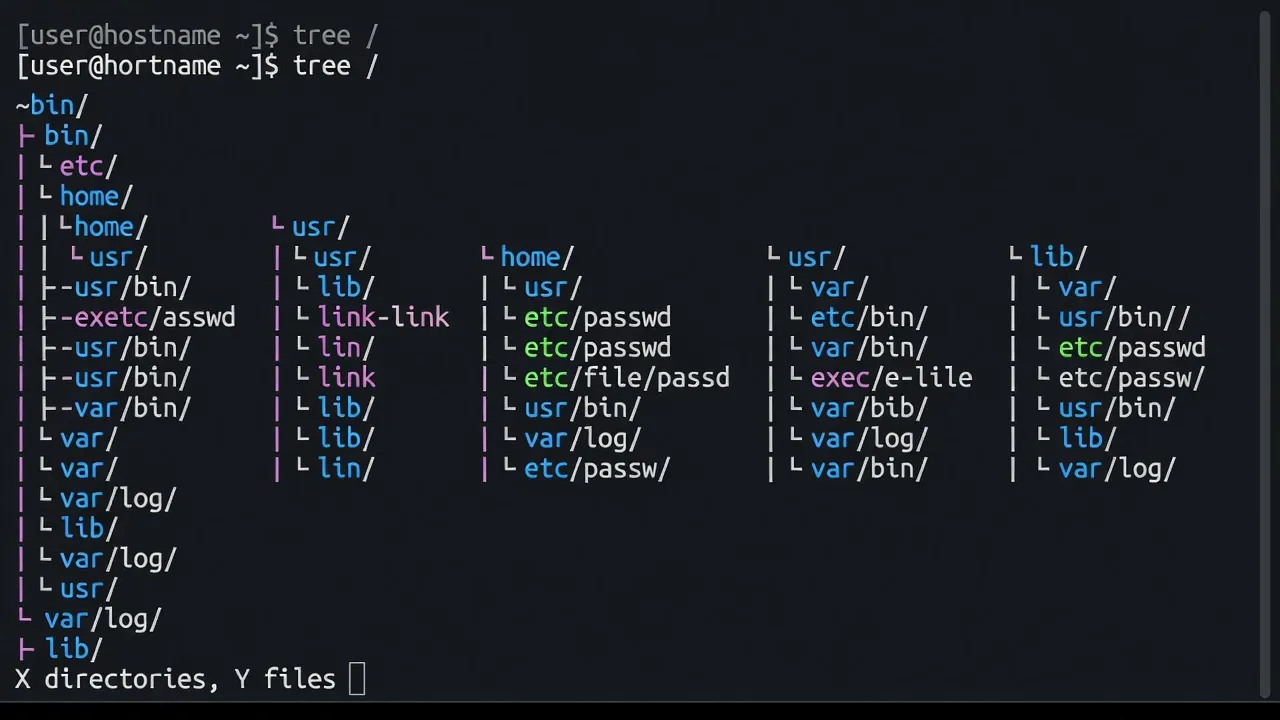
The act of making a storage device (hard drive, USB drive, network share) accessible at a specific location in the directory tree. On Linux, everything lives in one unified tree starting from /. When you plug in a USB drive, it gets “mounted” at a path like /media/username/drive-name. The mount command handles this manually; modern systems often mount devices automatically. Our guide to the Linux file system explains the full directory tree and how storage devices map to it.
Partition
A defined section of a storage device treated as a separate unit. A single hard drive can contain multiple partitions — for example, one for the Linux system, one for user data, and a swap partition. Partitions are managed with tools like fdisk or GParted.
Filesystem (as a type) The method used to organize and store data on a partition. Linux uses ext4 as the most common filesystem. Others include XFS (large files), Btrfs (snapshots), ZFS (enterprise storage), FAT32 (compatibility with Windows and cameras), and NTFS (reading Windows drives).
Inode A data structure that stores metadata about a file: its size, owner, permissions, timestamps, and the location of its data blocks on disk. Every file has exactly one inode. The filename is separate from the inode — a single inode can have multiple filenames (hard links).
Symlink (Symbolic Link)
A file that points to another file or directory, similar to a Windows shortcut. Create one with ln -s target link-name. When you access the symlink, Linux transparently redirects you to the target. Symlinks can cross partition boundaries; hard links cannot.
Home Directory
The personal directory for each user, located at /home/username. Your documents, downloads, configuration files (hidden files starting with .), and personal data all live here. The ~ symbol is shorthand for your home directory in the terminal.
PATH
An environment variable that lists the directories where the shell looks for executable programs. When you type firefox, the shell searches each directory in PATH until it finds the firefox binary. Add a custom scripts directory to PATH to make your scripts available as commands. Display your current PATH with: echo $PATH.
Package Management
Package A bundled collection of files — executables, libraries, documentation, configuration files — that together constitute an installable piece of software. Linux packages include metadata describing what other packages they depend on.
Repository (Repo)
A centralized server hosting a collection of packages. When you run sudo apt update, Linux downloads an updated list of available packages from its configured repositories. Distributions maintain official repos; third-party repos (PPAs on Ubuntu) provide additional software.
APT (Advanced Package Tool)
The package manager used on Debian-based distributions: Ubuntu, Linux Mint, Debian itself. Common commands: sudo apt update (refresh package lists), sudo apt install [name] (install a package), sudo apt upgrade (upgrade all installed packages), sudo apt remove [name] (remove a package).
DNF
The package manager for Fedora, Red Hat, and CentOS. Functionally similar to APT. Commands follow the same pattern: sudo dnf install [name], sudo dnf update.
Pacman
The package manager for Arch Linux and Arch-based distributions (Manjaro, EndeavourOS). Faster and more minimal than APT or DNF. sudo pacman -S [name] installs a package.
Flatpak
A universal package format that works across all Linux distributions. Flatpak apps run in sandboxed environments isolated from the rest of the system. Install the Flatpak runtime once, then install any Flatpak app: flatpak install flathub [app-id].
Snap
Another universal package format, developed and maintained by Canonical (Ubuntu’s creator). Snaps auto-update and run in sandboxed environments. Most common on Ubuntu systems. sudo snap install [name].
AppImage
A single self-contained executable file that includes all its dependencies. Download the file, make it executable (chmod +x file.AppImage), and run it — no installation, no package manager. Portable between distributions. Remote access tools and productivity software increasingly offer AppImage versions, and this format is popular for cloud services and utilities you’ll find at resources like soleica.ca.
Boot Process
BIOS (Basic Input/Output System) Firmware stored in a chip on the motherboard. On older systems, BIOS is the first code that runs when you power on a computer. It initializes hardware components and locates a bootable device. Being replaced by UEFI on modern systems.
UEFI (Unified Extensible Firmware Interface) The modern replacement for BIOS. UEFI supports larger disks, faster boot times, Secure Boot (which verifies that boot software hasn’t been tampered with), and a graphical firmware interface. Most computers built after 2012 use UEFI. Linux supports UEFI with a compatibility layer called GRUB with EFI support.
GRUB (Grand Unified Bootloader) The bootloader used by most Linux distributions. GRUB appears as a menu when your computer starts, letting you choose which OS to boot. If you have only one OS, GRUB usually skips the menu and boots immediately. GRUB can be customized to change timeout, appearance, and default OS.
Bootloader Any program responsible for loading the operating system kernel at startup. GRUB is the most common Linux bootloader. Others include systemd-boot (minimal, EFI-only) and rEFInd (for Mac dual-boot setups).
Init
The first process started by the kernel after boot. Init has PID 1 (the lowest possible process ID). It starts all other processes and services. Modern Linux distributions use systemd as their init system.
Systemd
The init system used by most modern Linux distributions. Systemd starts and manages services, handles logging (via journald), and controls the boot sequence. Commands: systemctl start [service], systemctl status [service], systemctl enable [service] (start at boot).
Runlevel / Target
A runlevel (legacy) or target (systemd) defines which services and processes are running. The default target on desktop systems is graphical.target (full desktop). Single-user mode (rescue.target) starts minimal services for maintenance. Check your current target with systemctl get-default.
Networking
IP Address
A numerical identifier for a device on a network. IPv4 addresses look like 192.168.1.42. IPv6 addresses are longer: 2001:db8::1. Your router assigns local (private) IP addresses via DHCP; your internet provider assigns your external (public) IP address. View your addresses with ip addr show.
DNS (Domain Name System)
The service that translates human-readable domain names (linuxbeginner.org) into IP addresses (185.199.108.153). Without DNS you’d need to memorize IP addresses for every website. Your DNS server is usually set automatically by DHCP. Change it manually with sudo nano /etc/resolv.conf or via your network manager.
SSH (Secure Shell)
A protocol and command for securely connecting to remote Linux systems over a network. ssh user@192.168.1.100 opens an encrypted terminal session on the remote machine. SSH uses public-key cryptography for authentication. Essential for managing servers remotely.
Firewall
Software that controls which network traffic is allowed to enter or leave your system. On Linux, the underlying system is iptables or nftables. Most beginners use UFW (Uncomplicated Firewall) as a front end: sudo ufw enable, sudo ufw allow 22/tcp (allow SSH).
UFW (Uncomplicated Firewall)
A user-friendly command-line interface for managing Linux firewall rules. UFW translates simple commands into iptables rules. Enable it on any new Linux installation: sudo ufw enable. Check status with sudo ufw status verbose.
Port A numbered endpoint for network communication. Port 80 is HTTP (web traffic), port 443 is HTTPS (encrypted web), port 22 is SSH, port 25 is SMTP (email). A firewall controls which ports are accessible from outside your system.
Socket An endpoint for two-way network communication between processes. Sockets can be network sockets (TCP/IP, identified by IP+port) or Unix domain sockets (local file-based communication between processes on the same machine).
Processes
Process
A running instance of a program. When you launch Firefox, the kernel creates a process for it. Each process has a unique PID (Process ID), its own memory space, and a set of open files. View running processes with ps aux or htop.
PID (Process ID)
A unique integer assigned to each running process by the kernel. The init process always has PID 1. Use a process’s PID to send signals to it: kill 1234 sends a termination signal to process 1234. kill -9 1234 sends an unblockable kill signal.
Daemon
A background process that runs continuously without direct user interaction, providing services to other programs or the system. The SSH server (sshd), web server (apache2, nginx), and print spooler (cupsd) are all daemons. Daemons typically start at boot and run until the system shuts down.
Cron Job
A scheduled task that runs automatically at defined times or intervals. Managed by the cron daemon. Edit your scheduled tasks with crontab -e. Example: 0 3 * * * /home/user/backup.sh runs a backup script every day at 3:00 AM.
Background Process
A process running without occupying the terminal. Start a command in the background by appending &: long-running-command &. The terminal returns immediately. View background jobs with jobs. Bring a background job to the foreground with fg.
Fork
The mechanism by which a process creates a child process. When you run a command in the terminal, your shell forks a child process to execute it. The child is initially an identical copy of the parent, then loads the new program via exec. Fork is the fundamental process creation mechanism in Unix and Linux.
Kill
To send a signal to a process, typically to terminate it. kill [PID] sends SIGTERM (a polite termination request that allows cleanup). kill -9 [PID] sends SIGKILL (an immediate, unblockable termination). From a graphical interface, right-clicking a frozen application and choosing “Force Quit” sends SIGKILL. For an introduction to Linux security tools including firewall configuration, our Linux security basics guide explains UFW, SSH, and system updates for beginners.
This glossary covers the terms you’ll encounter most often in Linux documentation, tutorials, and forums. As you use Linux daily, these concepts will shift from abstract definitions to intuitive knowledge — the kind that makes you feel at home in the terminal and across every distribution you encounter.