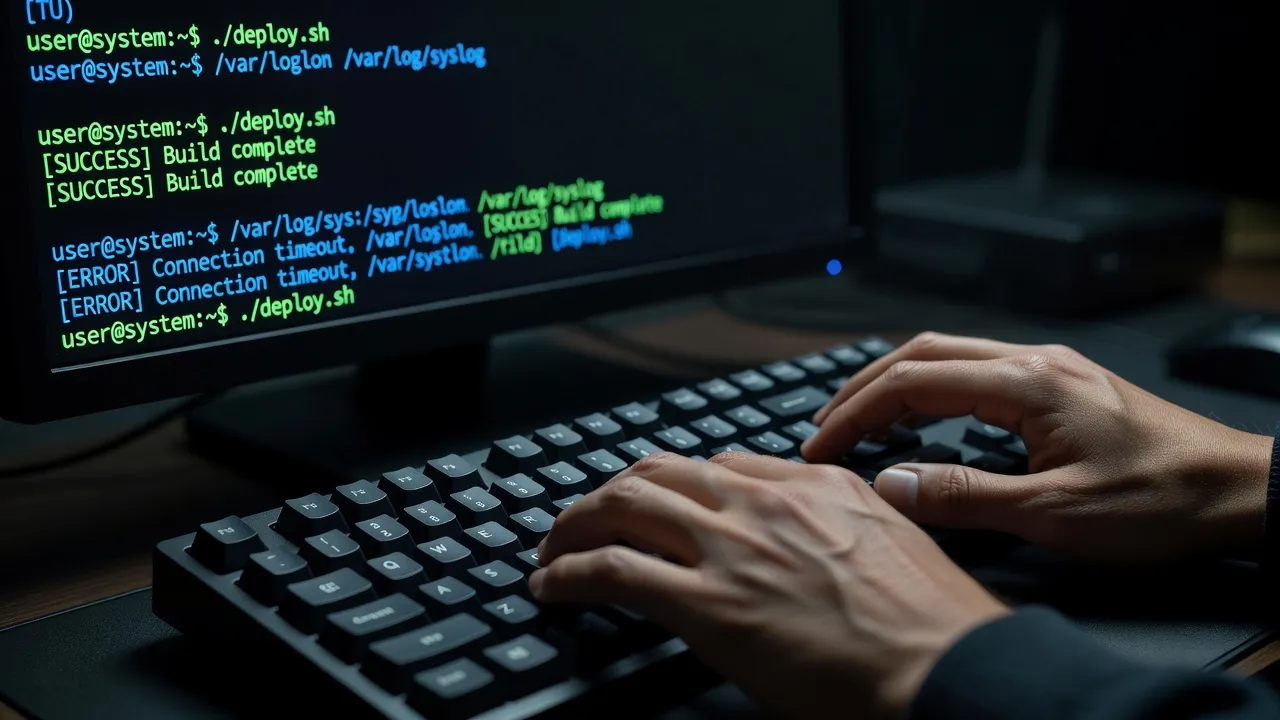
The Linux terminal has a fearsome reputation. A black window with white text, no mouse, no buttons — just a blinking cursor waiting for you to type something. To someone used to clicking through graphical interfaces, it can look intimidating.
But the terminal is actually one of the most powerful and efficient tools in computing, and learning even a handful of commands will make you dramatically more capable on Linux. This guide starts from absolute zero.
What exactly is the terminal?
The terminal (also called a terminal emulator, console, or command line) is a text-based interface to your computer. Instead of clicking buttons and icons, you type text commands and the computer responds with text output.
The terminal itself is just a window — it is the shell inside the terminal that actually interprets and executes your commands. Most Linux systems use Bash (Bourne Again Shell) as the default shell. When people say “the terminal” they usually mean “a terminal running the Bash shell”.
The shell reads what you type, figures out what program to run, runs it, and displays the output. It is a simple loop: input → process → output. The elegance of this system is that these simple building blocks can be combined in powerful ways to automate complex tasks.
Think of it as a conversation with your computer. You ask it to do something; it does it and tells you what happened. No waiting for windows to load, no hunting through menus.
Why bother with the terminal?
If graphical tools can do most things, why learn the terminal at all? Several reasons:
Speed: Many tasks are faster in the terminal. Installing five programs takes one line. Renaming two hundred files according to a pattern takes one command with wildcards.
Precision: The terminal does exactly what you tell it. There are no hidden effects, no background processes you did not ask for. You see exactly what is happening.
Remote access: When you connect to a remote Linux server (like a web server or a Raspberry Pi), you have only the terminal. No graphical interface is available. Terminal skills become essential.
Automation: You can save terminal commands in a script file and run them automatically. This is the foundation of system administration and DevOps.
Problem solving: When something goes wrong with a graphical application, error messages appear in the terminal. Understanding what you are reading makes debugging far easier.
You do not need to master the terminal to use Linux daily. But learning ten to twenty commands opens up possibilities that graphical tools simply cannot match.
How to open the terminal
On Ubuntu, press Ctrl+Alt+T. A terminal window opens immediately.
On other distributions:
- Linux Mint: Right-click the desktop and select “Open Terminal”, or find it in the application menu under “System Tools”
- Fedora: Press the Super (Windows) key, type “terminal”, and press Enter
- Manjaro: Right-click the desktop or find it in the application menu
You can also add the terminal to your taskbar or dock for quick access. On Ubuntu, right-click the terminal icon in the taskbar while it is running and select “Add to Favorites”.
Understanding the command prompt
When the terminal opens, you see something like this:
john@my-laptop:~$This is the prompt — the terminal telling you it is ready for input. It contains useful information:
john— your usernamemy-laptop— the name of your computer~— your current directory (the tilde symbol means your home directory, e.g. /home/john)$— indicates you are logged in as a regular user (not root/administrator)
If you ever see # instead of $, you are running as the root (administrator) user. This is powerful and potentially dangerous — be careful.
The directory shown in the prompt changes as you navigate. After you move to the Downloads folder, it shows:
john@my-laptop:~/Downloads$Your first 10 Linux commands
Let us learn the most fundamental commands. Type each one and press Enter to run it.
1. pwd — Print Working Directory
Shows you where you are in the file system.
pwdOutput: /home/john (or wherever you are)
2. ls — List files and directories
Shows what is in your current directory.
lsAdd -l for a detailed list with file sizes and dates:
ls -lAdd -a to show hidden files (files that start with a dot):
ls -la3. cd — Change Directory
Navigate to a different folder.
cd DocumentsGo back one level:
cd ..Go to your home directory from anywhere:
cd ~4. mkdir — Make Directory
Create a new folder.
mkdir my-new-folder5. touch — Create an empty file
touch myfile.txt6. cat — Display file contents
cat myfile.txt7. cp — Copy a file
cp myfile.txt myfile-backup.txt8. mv — Move or rename a file
Rename a file:
mv myfile.txt renamed-file.txtMove a file to a different folder:
mv renamed-file.txt Documents/9. rm — Remove (delete) a file
rm renamed-file.txtWarning: rm does not send files to a trash bin. Deletion is permanent. To delete a folder and all its contents:
rm -r my-folder10. echo — Print text to the terminal
echo "Hello, Linux!"This is useful for displaying text and for writing text into files:
echo "Hello" > greeting.txtNavigating the file system
The Linux file system is organized as a tree starting from the root directory /. Your personal files live in /home/yourusername/, which is abbreviated as ~.
Practice navigating with these commands:
cd /          # Go to the root of the file system
ls            # See what is at the root
cd /home      # Go to the home directory folder
ls            # See the user folders
cd ~          # Return to your home directory
Paths in Linux can be absolute or relative. An absolute path starts from the root:
cd /home/john/DocumentsA relative path starts from your current location:
cd DocumentsBoth achieve the same result if you are already in /home/john.
Creating and deleting files
Practice creating, reading, and deleting files:
# Create a directory for practice
mkdir terminal-practice

# Navigate into it
cd terminal-practice

# Create some files
touch file1.txt file2.txt file3.txt

# List them
ls

# Write some content into file1
echo "This is the first file" > file1.txt

# Read the content back
cat file1.txt

# Copy file1 to file4
cp file1.txt file4.txt

# Delete file3
rm file3.txt

# List again to see the result
ls
You now have a solid foundation for basic file operations.
Getting help with ‘man’ and ‘—help’
Every Linux command comes with built-in documentation. Two ways to access it:
The manual (man): Shows the complete manual page for a command.
man lsUse arrow keys to scroll, and press q to quit the manual.
The --help flag: Most commands accept --help and display a shorter summary of options.
ls --helpWhen you encounter an unfamiliar command or forget what a flag does, these two options give you the answer without leaving the terminal.
Essential keyboard shortcuts
The terminal has keyboard shortcuts that make it much faster to use:
- Ctrl+C — Stop the currently running command
- Ctrl+L — Clear the terminal screen (same as typing
clear) - Tab — Auto-complete a filename or command (press once to complete, twice to show options)
- Up arrow — Scroll through your command history (press repeatedly to go back further)
- Down arrow — Move forward through command history
- Ctrl+A — Move cursor to the beginning of the line
- Ctrl+E — Move cursor to the end of the line
- Ctrl+U — Delete everything from the cursor to the beginning of the line
- Ctrl+D — Exit the current shell session (or send end-of-file)
Tab completion is particularly useful — type the first few letters of a filename and press Tab to have the terminal complete it automatically. This saves typing and prevents typos.
Next steps
You now know the basics: navigating the file system, creating and managing files, and getting help. These ten commands and keyboard shortcuts cover the majority of everyday terminal usage for a beginner.
The natural next step is to learn more commands. Our guide on 50 essential Linux commands for beginners covers the most useful commands organized by category, with examples for each.
You should also learn how the Linux file system is organized. Understanding what goes in /etc, /var, /home and other directories helps enormously when reading guides and troubleshooting problems. See understanding the Linux file system for a clear explanation.
Finally, do not hesitate to experiment. The terminal is a safe environment as long as you avoid commands that start with sudo rm -rf on directories you do not understand. Make a practice folder, create test files, and try commands to see what they do. Learning by doing is the fastest way to get comfortable. Once you have the basics, our article on 10 terminal tricks that changed how I work covers shortcuts and techniques that dramatically speed up daily terminal use.