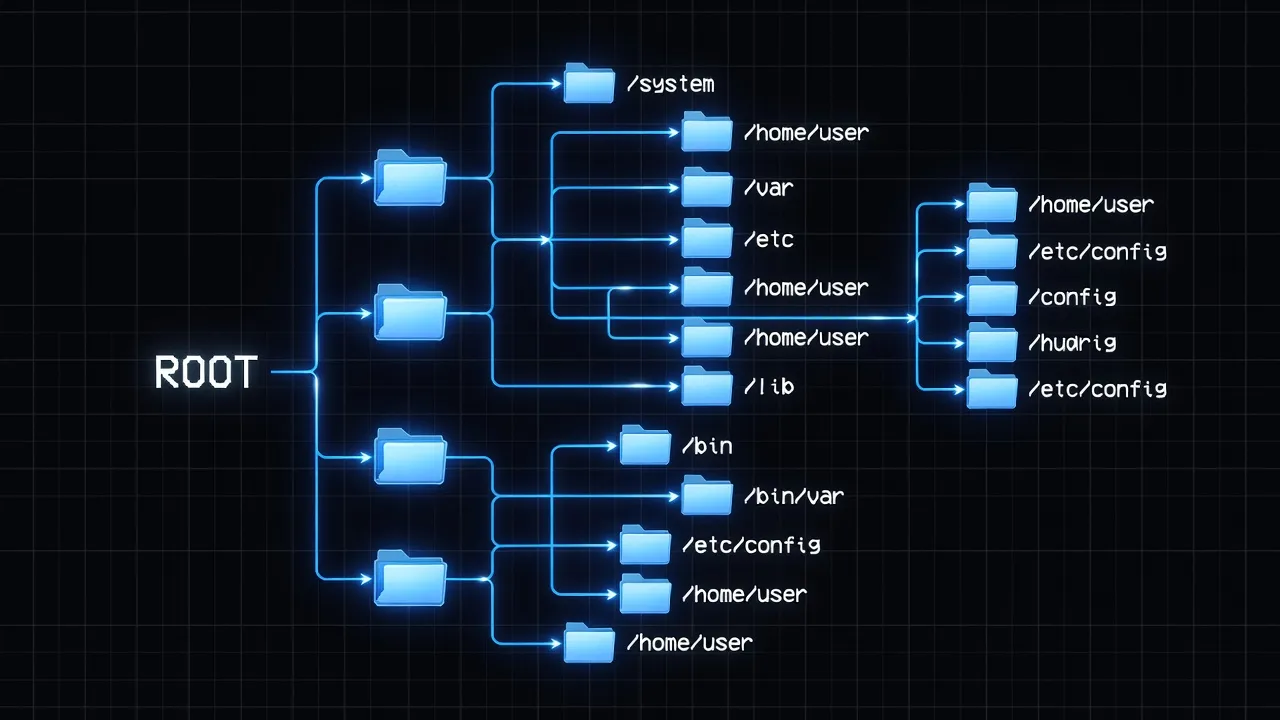
When you first look at a Linux file system, the directory names seem strange and arbitrary. Why is there a folder called /etc? What does /usr stand for? Why are there both /bin and /usr/bin?
These names are not random. They follow a standard called the Filesystem Hierarchy Standard (FHS), which defines what goes where on a Linux system. Understanding this structure helps you find files quickly, read guides without getting lost, and understand what a command is actually doing.
The single-tree philosophy
The most fundamental difference between Linux and Windows file systems is structural. Windows organizes storage as separate drives, each with its own root: C:\ for the main drive, D:\ for a second drive, E:\ for a USB stick.
Linux uses a completely different approach: a single unified tree. Everything starts from one root directory (/) and branches outward from there. Additional storage devices — USB drives, external hard drives, network shares — are attached (or “mounted”) somewhere inside this tree rather than appearing as separate drive letters.
This means a USB drive might appear at /media/alice/USB-Drive/. A second hard drive might be mounted at /home/ (a very common setup on servers). A network share might appear at /mnt/server/.
The advantage of this approach is consistency. No matter where files are physically stored, you access them through the same hierarchical path. A program does not need to know whether a file is on the SSD or an external drive — it just reads the path.
You can see the top-level contents of the Linux file system with:
ls /This shows all the directories that branch directly from the root.
The root directory /
The root directory is written as a single forward slash: /. It is the starting point for all file paths in Linux. There is only one root, and it is owned by the root (administrator) user.
When you see a path like /home/alice/Documents/report.txt, you read it from left to right:
/— start at the roothome— go into thehomedirectoryalice— go into alice’s directoryDocuments— go into Documentsreport.txt— this is the file
Everything in the Linux system lives somewhere under /. System files, user files, program files, hardware devices — all of it is organized as directories branching from this single point.
/home — your personal space
The /home directory contains a personal folder for each user on the system. If your username is alice, your home directory is /home/alice/. This is where all your personal files, documents, downloads, music, photos and application settings are stored.
Your home directory is often abbreviated as ~ in the terminal. The paths /home/alice/Documents and ~/Documents refer to the same place.
As a regular user, you have full read and write access to your own home directory and nothing inside it. You cannot read other users’ home directories (unless they have set their permissions to allow it) and you cannot write to system directories without using sudo.
Inside your home directory, you typically find these folders (some may be hidden — use ls -la to see all):
ls ~/
# Desktop  Documents  Downloads  Music  Pictures  Public  Templates  Videos
Application settings are also stored in your home directory as hidden folders and files (names starting with a dot). For example, Firefox stores your profile at ~/.mozilla/firefox/.
/etc — system configuration
The /etc directory is the central location for system-wide configuration files. “Etc” originally stood for “et cetera” in early Unix, though some now joke it means “Editable Text Configuration”.
Every major service and program on your system has one or more configuration files in /etc. These are plain text files — you can open them with a text editor. Here are some important ones:
/etc/hosts— maps hostnames to IP addresses (like a local DNS override)/etc/hostname— the name of your computer/etc/fstab— defines which disk partitions mount where at boot time/etc/apt/sources.list— defines which software repositories APT uses (Ubuntu/Debian)/etc/passwd— list of user accounts (passwords are not stored here)/etc/shadow— encrypted passwords (readable only by root)/etc/sudoers— defines who can use sudo and which commands they can run/etc/ssh/sshd_config— SSH server configuration/etc/nginx/or/etc/apache2/— web server configuration
You need root privileges to edit files in /etc. Use sudo nano /etc/hosts to edit system configuration files.
/var — variable data and logs
The /var directory contains files that change (“vary”) while the system is running. The most important subdirectory here is /var/log/, which holds system log files.
When something goes wrong with your system, the logs in /var/log/ are the first place to look. Key log files:
sudo tail -f /var/log/syslog          # general system messages (Ubuntu/Debian)
sudo tail -f /var/log/auth.log        # authentication events (logins, sudo)
sudo journalctl -f                     # systemd journal (modern way to read logs)
sudo journalctl -u nginx               # logs for a specific service
Other important /var subdirectories:
/var/cache/apt/— downloaded package files/var/mail/— local mail for system users/var/www/html/— the default document root for Apache web server/var/lib/— persistent data for installed applications
/usr — user programs
Despite the name, /usr does not contain user files (those are in /home). The name comes from Unix history where it meant “Unix System Resources”. Today it contains the programs, libraries, and documentation installed on the system.
The most important subdirectories:
/usr/bin/— executable programs for all users (most commands you run live here)/usr/sbin/— system administration executables (requires root to use)/usr/lib/— shared libraries used by programs/usr/share/— architecture-independent data: documentation, icons, translations/usr/local/— software you install manually (not through a package manager)
The /usr/local/ directory is particularly useful. When you compile software from source or install something outside the package manager, it goes here by default. This keeps manually installed software separate from package-manager-installed software, making it easier to manage.
/bin and /sbin — essential commands
Historically, /bin contained the essential command-line tools needed at boot time and for system recovery — commands like ls, cp, mv, rm, bash and cat. The reasoning was that /usr might be on a separate filesystem that is not yet mounted early in the boot process.
In modern Linux distributions (Ubuntu, Fedora, Arch), this distinction has been eliminated. /bin is now a symbolic link pointing to /usr/bin. Running ls /bin and ls /usr/bin shows you the same directory.
Similarly, /sbin (containing system administration commands like fdisk and ifconfig) is now a symbolic link to /usr/sbin.
You can verify this:
ls -la / | grep bin
# lrwxrwxrwx  1 root root     7 Apr  1 2024 bin -> usr/bin
# lrwxrwxrwx  1 root root     8 Apr  1 2024 sbin -> usr/sbin
The arrow -> shows that /bin points to usr/bin.
/tmp — temporary files
The /tmp directory is for temporary files created by programs. Every user can write to /tmp, and files stored here are typically deleted when the system reboots (and sometimes sooner).
Programs use /tmp to store intermediate data during processing — downloaded files mid-transfer, extraction locations for archives, session data for applications.
You can use /tmp for your own temporary files too:
cp large-file.tar.gz /tmp/
cd /tmp && tar xzf large-file.tar.gz
Do not store anything important in /tmp. It will be cleaned up automatically.
/dev — hardware as files
One of Linux’s most unusual features is that hardware devices appear as files in the /dev directory. This follows the Unix philosophy that “everything is a file”.
Common device files:
/dev/sda— your first hard drive (or SSD)/dev/sda1— the first partition on that drive/dev/nvme0n1— NVMe SSD drives/dev/cdrom— optical disc drive/dev/null— the “null device” — anything written here disappears (useful for discarding output)/dev/zero— produces an endless stream of zeros/dev/random— produces random bytes/dev/tty— the current terminal
Most beginners never need to interact with /dev directly, but knowing these files exist helps when reading documentation about disk partitioning or storage management.
/proc and /sys — system information
These two special directories do not contain real files. They are virtual filesystems that expose information about the running system.
/proc (short for process) contains information about running processes and the kernel:
cat /proc/cpuinfo           # CPU details
cat /proc/meminfo           # memory usage details
ls /proc/                   # each numbered directory is a running process (PID)
cat /proc/1/status          # status of process with PID 1
/sys provides a structured interface to kernel parameters and hardware settings. It is used heavily by system administration tools but rarely accessed directly by users.
/boot — bootloader files
The /boot directory contains the files needed to start the system: the Linux kernel itself, the initial RAM disk image (initrd), and the GRUB bootloader configuration.
ls /boot
# grub/  initrd.img  vmlinuz  System.map
vmlinuz is the compressed Linux kernel. initrd.img is a small temporary file system loaded before the real file system to handle early boot tasks.
You rarely need to touch anything in /boot. GRUB and kernel updates are managed by the package manager. However, if your system fails to boot after an update, knowing that boot files live here helps when following recovery guides.
Absolute vs relative paths
Understanding paths is essential for working in the terminal. Every file location can be expressed in two ways.
An absolute path starts from the root and describes the complete location:
/home/alice/Documents/report.txt
/etc/nginx/nginx.conf
/var/log/syslog
A relative path starts from your current location (shown by pwd):
Documents/report.txt        # if you are in /home/alice
../alice/Documents/         # if you are in /home/bob
./script.sh                 # a file in the current directory
The . symbol means “current directory” and .. means “parent directory”. These are especially useful when navigating relative to where you are.
With this understanding of the Linux file system, you will find it much easier to follow guides and understand what commands are doing. When a tutorial says to edit /etc/nginx/sites-available/default, you now know exactly where that file is and why it is there. For your next step, explore Linux file permissions to understand who can read, write, and run each file in this hierarchy. And whenever you encounter unfamiliar Linux terms — inode, mount, daemon, symlink — our Linux glossary for beginners defines 50 essential terms in plain English.