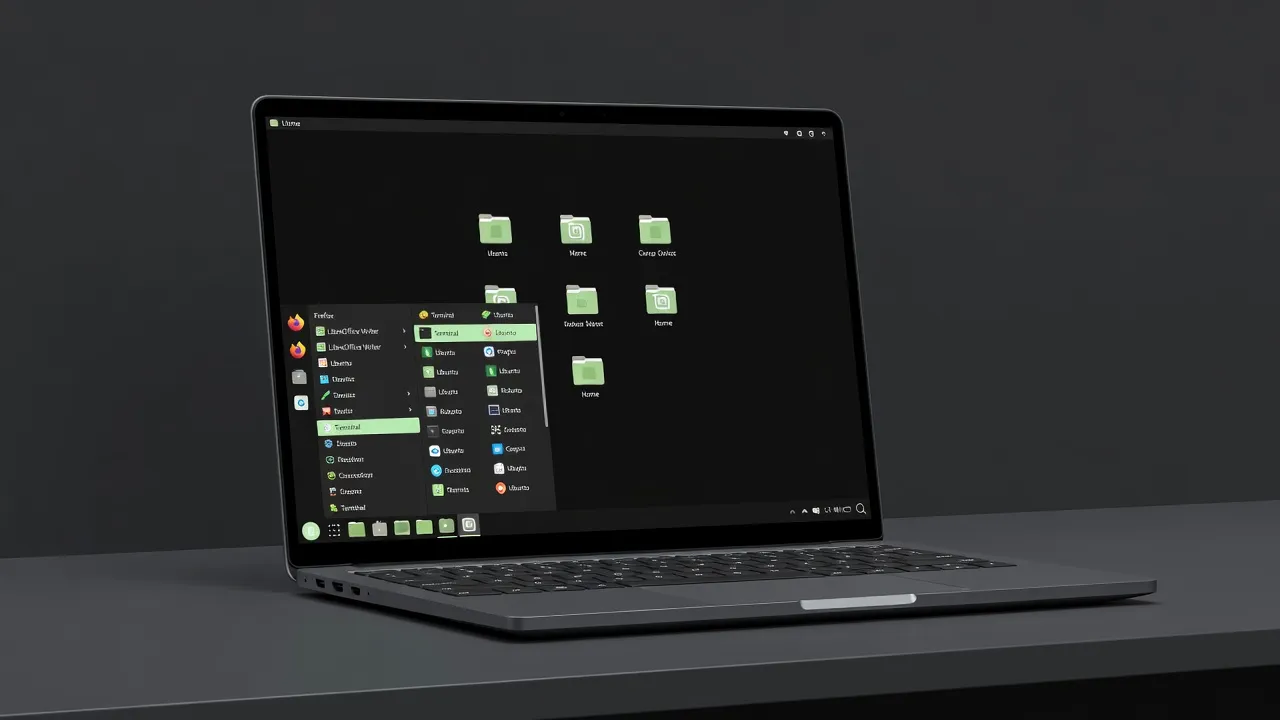
I had been curious about Linux for years. I used Windows 10, I knew the basics, and every time a forum thread mentioned switching I’d read it, nod thoughtfully, and go back to my usual habits. Then one afternoon I decided to stop planning and start doing. I downloaded Linux Mint 22, burned it to a USB stick, and committed to using it as my only operating system for one week.
This is my honest account of that week — the good, the frustrating, and the genuinely surprising.
Day 1: Download, Installation, and First Impressions
The download from the official Linux Mint website was 2.7 GB. I used Balena Etcher to write it to a USB stick — a process that took about four minutes and required zero technical knowledge. I rebooted, pressed F12 to access my boot menu, and selected the USB drive.
The live environment loaded in under 90 seconds. I was presented with a desktop that looked, to my Windows-trained eyes, remarkably familiar: a taskbar at the bottom, a clock in the bottom right, a start-menu-style button in the bottom left. I didn’t feel lost.
Before installing, I did something important: I made a full backup of my existing Windows files. If you’re planning to dual-boot or replace Windows, this is non-negotiable. I highly recommend using a dedicated backup tool — jesauvegardemesdocuments.fr has excellent resources on backing up your files before switching Linux distributions, including guides for using external drives and cloud storage together.
Installation itself took 18 minutes. The installer asked me five questions: language, keyboard layout, installation type (I chose dual boot alongside Windows), timezone, and username. That was it. No confusing partitioning wizards, no registry keys, no activation codes.
First boot into the installed system: everything worked. WiFi connected automatically. Screen resolution was correct. Sound worked. I was genuinely surprised.
Day 2: Finding My Software
The first real test came when I needed my usual applications. On Windows I had Chrome, Spotify, Discord, and VS Code. My instinct was to open a browser and download .exe files — but I remembered that isn’t how Linux works.
I opened the Software Manager, which is Mint’s graphical application store. Searching for Chrome returned Firefox (pre-installed), Chromium, and a guide to installing Google Chrome. Installing Chromium took two clicks. VS Code was listed directly in the Software Manager and installed in under a minute.
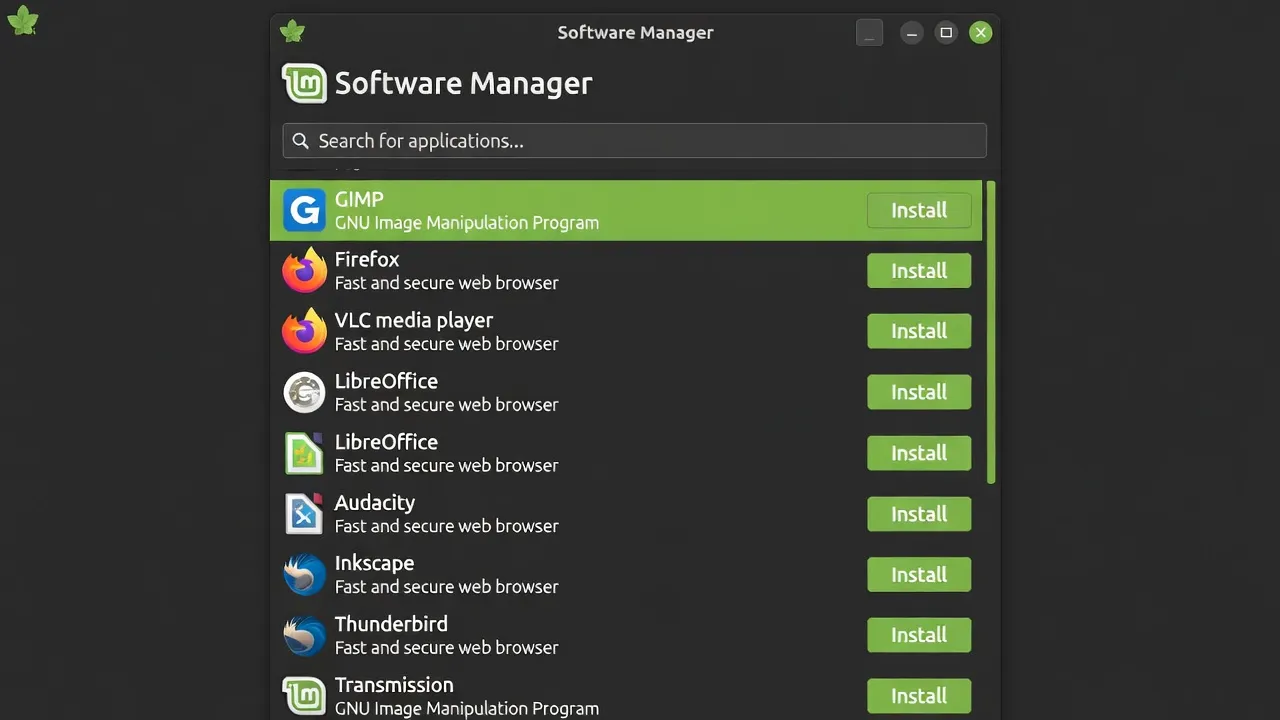
For Spotify, I needed to install it via Flatpak — a slightly different package format. The Software Manager handled this transparently; I didn’t need to touch a terminal. Discord similarly installed via Flatpak without issues.
The broader lesson I learned on Day 2: the answer to “is app X available on Linux?” is usually yes, but sometimes through a different method than downloading from a website. The Software Manager handles most of it automatically.
Day 3: Browser, Office, and Media
I’d worried about Microsoft Office. I work with Word documents regularly. LibreOffice Writer, which came pre-installed, opened my .docx files correctly — formatting preserved, tables intact, tracked changes visible. It isn’t identical to Word, and the interface felt slightly unfamiliar, but after an hour I’d adapted to the differences.
Firefox came pre-installed and felt snappy. I imported my bookmarks from Chrome in three minutes. My bank’s website worked without issues — a concern I’d seen raised in older Linux forums proved irrelevant in 2026. For a complete breakdown of how Linux package installation works, our guide to installing software on Linux covers apt, Flatpak, Snap, and AppImage.
VLC handled every video file I threw at it: MKV, MP4, AVI, and an old WMV file from 2009. Mint installs multimedia codecs by default, which Ubuntu (its upstream) doesn’t do. This is one of Mint’s quiet advantages over some other distributions.
Day 4: Gaming — The Big Question
This was the day I’d been most nervous about. I’m not a hardcore gamer, but I play a few titles regularly: an older strategy game, a recent action RPG, and occasionally something from my Steam library backlog.
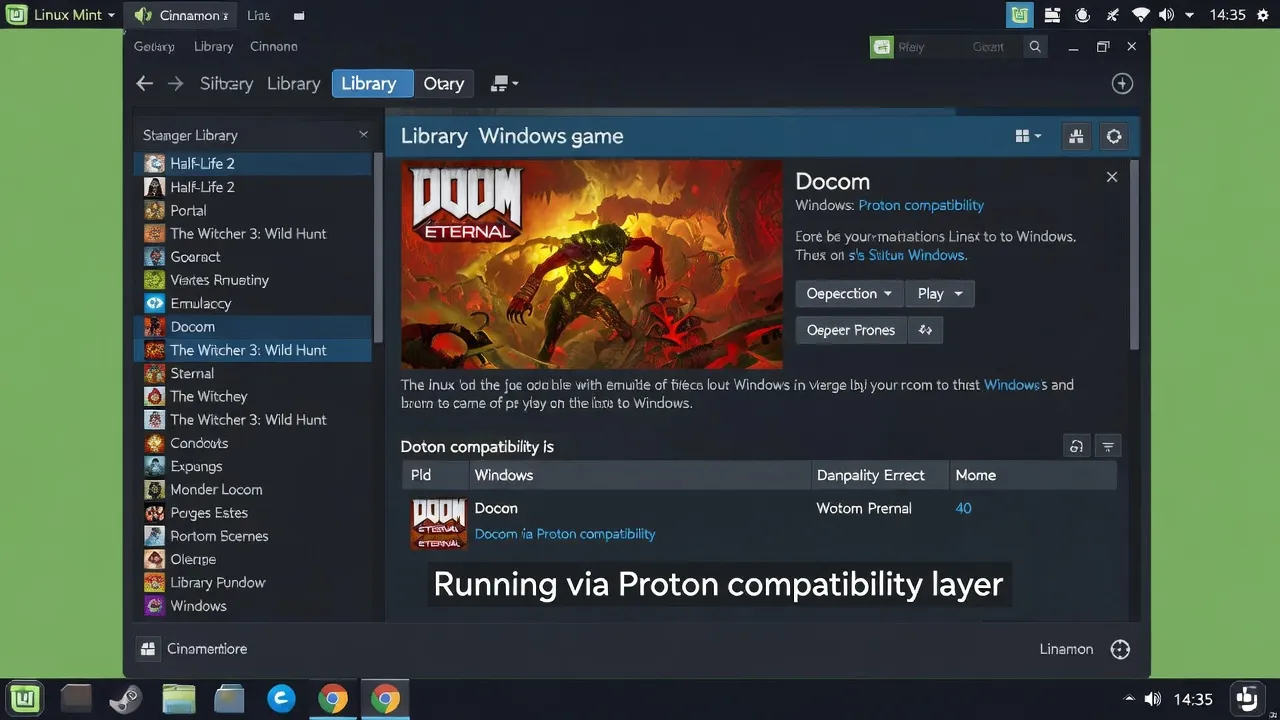
I installed Steam. It prompted me to enable Steam Play / Proton, which is Valve’s compatibility layer that lets Linux run Windows games. I enabled it, restarted Steam, and started downloading.
Results:
- Older strategy title (2015): Ran perfectly. Better frame rate than on Windows, actually.
- Action RPG (2023): Ran well after I enabled “Force the use of a specific Steam Play compatibility tool” in the game’s Properties menu.
- A game with invasive anti-cheat (VAC is fine, the problem is kernel-level anti-cheat): Would not launch. This is the known limitation of gaming on Linux — kernel-level anti-cheat software like Easy Anti-Cheat (on some games) and BattlEye (varies) blocks Linux. Check ProtonDB before assuming a game won’t work.
Day 5: Customization — Cinnamon Is a Pleasure
One thing I did not expect: how much I’d enjoy customizing the desktop. Cinnamon’s settings panel is genuinely well-designed. I changed the theme to a dark variant in three clicks, adjusted panel icon sizes, enabled window snap animations, and rearranged the taskbar — all without touching a configuration file.
The Mint Welcome Screen guided me toward useful tweaks: enabling the firewall (UFW) — pre-installed but off by default — adjusting power settings, and installing additional language packs if needed.
Keyboard shortcuts were a revelation. Ctrl+Alt+T opens the terminal. Super+D shows the desktop. Super+L locks the screen. These felt natural within a day.
Day 6: The Terminal Becomes Natural
I’d been avoiding the terminal on principle, trying to prove that Linux doesn’t require it for basic use. By Day 6 my curiosity won. I opened it.
My first real command: sudo apt update && sudo apt upgrade — updating all installed software. The output was verbose but readable. Nothing broke. I felt oddly accomplished.
I installed htop to monitor system resources. I used df -h to check disk space. I ran lsblk to see my drives. Each command worked, each output made sense. The terminal stopped feeling like a threat and started feeling like a useful tool.
Day 7: The Verdict
Seven days. I’d browsed the web, written documents, edited some photos in GIMP, watched videos, played games, attended a video call (my webcam worked immediately in the browser), and ran software for my work.
What genuinely impressed me:
- Boot time: 14 seconds from GRUB menu to usable desktop
- Battery life on my laptop: noticeably better than Windows
- No ads, no telemetry prompts, no “do you want to sign in with your Microsoft account”
- The system felt snappy throughout — no background Windows Update processes stealing resources
What genuinely frustrated me:
- A Bluetooth speaker required a workaround to connect (a known issue with a specific chipset, fixable but not obvious)
- One piece of work software had a Linux version that was two major releases behind the Windows version
- Font rendering looked slightly different from what I was used to (I adjusted to it by Day 3)
Would I recommend it to a Windows user considering switching?
Yes — with one caveat. Know in advance which software you depend on, and check Linux compatibility before you commit. For the vast majority of everyday computer users — browsing, documents, media, communication — Linux Mint 22 works without compromise. The week changed how I think about what an operating system needs to be.