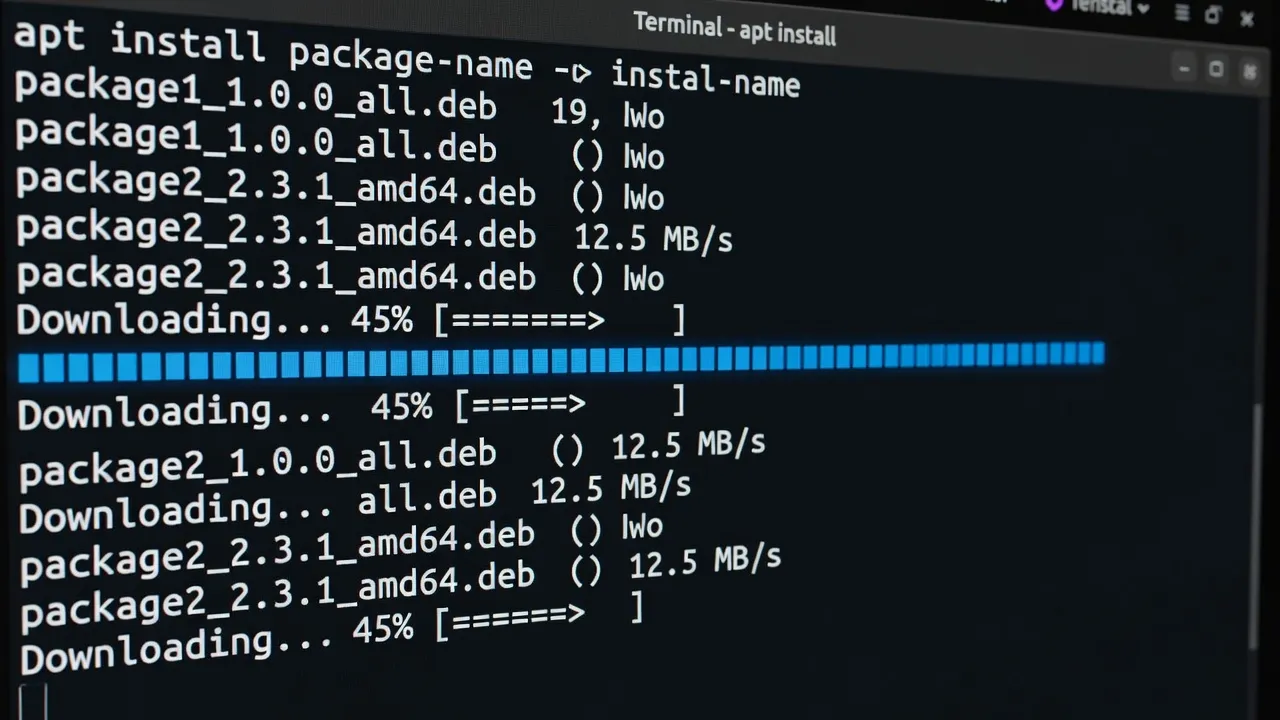
Installing software on Linux is fundamentally different from Windows or macOS. Instead of going to a website, downloading an installer, and clicking through a wizard, Linux uses a package manager — a centralized system that downloads, installs, updates, and removes software from trusted repositories.
Once you understand how this works, installing software on Linux is actually simpler and faster than on Windows. This guide covers the main package managers you will encounter and explains when to use each one.
How Linux software installation works
When you install software on Linux, the package manager connects to one or more software repositories — essentially curated catalogs of thousands of software packages maintained by your Linux distribution. These repositories store the actual package files along with metadata about each package: its name, version, description, and dependencies.
Dependencies are other packages that a program needs to run. For example, a media player might depend on a specific video codec library. When you install the media player, the package manager automatically installs all required dependencies. You never need to hunt down missing libraries manually.
Every package in the official repositories has been reviewed by the distribution’s maintainers. This means you are downloading software from a trusted source, not a random website. The package manager also verifies cryptographic signatures to ensure packages have not been tampered with.
The key command pattern is: update the package list (so you know what is available), then install the package. The two steps are important — running only the install command without updating first may give you an outdated version.
APT — Ubuntu and Debian
APT (Advanced Package Tool) is the package manager for Ubuntu, Debian, Linux Mint, and all distributions based on them. If you are running Ubuntu, this is what you use.
Update the package list (always run this before installing):
sudo apt updateInstall a package:
sudo apt install vlc
sudo apt install firefox
sudo apt install git
sudo apt install build-essential     # common development tools
Install multiple packages at once:
sudo apt install vlc gimp inkscapeRemove a package:
sudo apt remove vlcRemove a package and its configuration files:
sudo apt purge vlcUpgrade all installed packages:
sudo apt update && sudo apt upgradeSearch for a package:
apt search music
apt search "video player"
Show information about a package:
apt show vlcList installed packages:
apt list --installedRemove packages that are no longer needed (orphaned dependencies):
sudo apt autoremoveRun this periodically to keep your system clean. It removes packages that were installed as dependencies but are no longer needed because the software that required them has been removed.
DNF — Fedora and RHEL
DNF is the package manager for Fedora, Red Hat Enterprise Linux (RHEL), and CentOS Stream. It replaced the older yum command.
Update the package list and install a package:
sudo dnf install vlcDNF automatically checks for updates when you install a package, so you do not need a separate update step before installing.
Upgrade all packages:
sudo dnf upgradeRemove a package:
sudo dnf remove vlcSearch for packages:
dnf search musicShow package information:
dnf info vlcList installed packages:
dnf list installedClean up orphaned packages:
sudo dnf autoremoveFedora’s repositories do not include some proprietary packages (like certain codecs) by default. Adding the RPM Fusion repositories gives you access to more software:
sudo dnf install https://mirrors.rpmfusion.org/free/fedora/rpmfusion-free-release-$(rpm -E %fedora).noarch.rpmPacman — Arch and Manjaro
Pacman is the package manager for Arch Linux and Manjaro. Its syntax is different from APT and DNF but equally simple once learned.
Synchronize package database and install a package:
sudo pacman -S vlcUpdate all packages:
sudo pacman -SyuThe -Syu flags mean: sync (S), refresh (y), upgrade (u). On Arch-based systems, you should always update the full system before installing new packages.
Remove a package:
sudo pacman -R vlcRemove a package and its dependencies not used by other packages:
sudo pacman -Rs vlcSearch for a package:
pacman -Ss musicShow package information:
pacman -Si vlcList installed packages:
pacman -QManjaro users also have access to the AUR (Arch User Repository), a community-maintained repository with thousands of additional packages. The recommended way to use the AUR is through a helper like yay:
yay -S google-chrome # installs from AURFlatpak — universal packages
Flatpak is a technology that lets you install the same application package on any Linux distribution, regardless of which base distribution or package manager it uses. Flatpak packages run in a sandboxed environment for additional security.
The main Flatpak repository is Flathub (flathub.org), which has thousands of applications — often including newer versions than your distribution’s own repositories.
Install Flatpak support (Ubuntu):
sudo apt install flatpak
sudo apt install gnome-software-plugin-flatpak
flatpak remote-add --if-not-exists flathub https://dl.flathub.org/repo/flathub.flatpakrepo
Then restart your system for the changes to take effect.
Install an application from Flathub:
flatpak install flathub org.videolan.VLC
flatpak install flathub org.gimp.GIMP
flatpak install flathub com.spotify.Client
Run a Flatpak application:
flatpak run org.videolan.VLCOr simply launch it from your application menu — Flatpak applications appear alongside regular applications.
Update all Flatpak applications:
flatpak updateRemove a Flatpak application:
flatpak uninstall org.videolan.VLCSearch for applications:
flatpak search vlcFlatpak is especially useful when you want a newer version of an application than your distribution provides, when you need an application not available in your distribution’s repositories, or when you want the extra security of a sandboxed application.
Snap — another universal option
Snap is Canonical’s alternative to Flatpak, used primarily on Ubuntu. Snap packages are installed from the Snap Store and update automatically in the background.
sudo snap install vlc
sudo snap install chromium
sudo snap remove vlc
snap list            # show installed snaps
Snap is convenient for some applications, particularly developer tools where you want automatic updates. Note that Snap packages can sometimes start more slowly than native packages because of the sandbox overhead.
Installing from .deb and .rpm files
Some software publishers distribute their software as direct package files rather than through repositories. Common examples include Google Chrome (.deb) and Visual Studio Code (.rpm for Fedora).
Installing a .deb file (Ubuntu/Debian):
sudo dpkg -i package-name.deb
# If dependencies are missing, fix them with:
sudo apt install -f
Or use the simpler apt method:
sudo apt install ./package-name.debInstalling an .rpm file (Fedora):
sudo dnf install package-name.rpmAfter installing from a file, future updates are not handled automatically. Many publishers also provide a repository you can add, so that future updates are delivered through your package manager — this is the recommended approach for software you plan to keep long-term.
The graphical software center
Every major Linux distribution includes a graphical software center that provides a point-and-click interface to the same packages available through the terminal.
On Ubuntu, open “Ubuntu Software” from the application menu. You can browse categories, read descriptions and reviews, and click “Install” to install any application. The graphical software center is powered by APT and Flatpak in the background — it does the same thing as the terminal commands, just with a friendlier interface.
For beginners who are not yet comfortable with the terminal, the software center is perfectly adequate for day-to-day software installation.
Removing software
Removing software is as straightforward as installing it.
sudo apt remove vlc             # Ubuntu: remove the application
sudo apt autoremove             # remove unused dependencies

sudo dnf remove vlc             # Fedora: remove the application

sudo pacman -Rs vlc             # Arch: remove with unneeded dependencies

flatpak uninstall org.videolan.VLC   # Flatpak
When you remove software using the package manager, it properly cleans up the installation — better than Windows uninstallers, which often leave files behind.
Keeping your software updated
One of Linux’s most important advantages over Windows is that updates cover all your installed software — not just the operating system. When you run sudo apt upgrade, you update Firefox, LibreOffice, VLC, and all other packages at once.
Establish a weekly habit of running updates:
sudo apt update && sudo apt upgrade    # Ubuntu/Debian
sudo dnf upgrade                        # Fedora
sudo pacman -Syu                        # Arch/Manjaro
flatpak update                          # Flatpak (any distro)
Keeping software updated is one of the simplest and most effective security measures you can take. For more on Linux security practices, see our guide on Linux security basics. If you are wondering which applications are actually worth installing first, our top 20 free Linux apps list covers the essential picks for browsers, office, media, gaming and development — each with the exact install command.