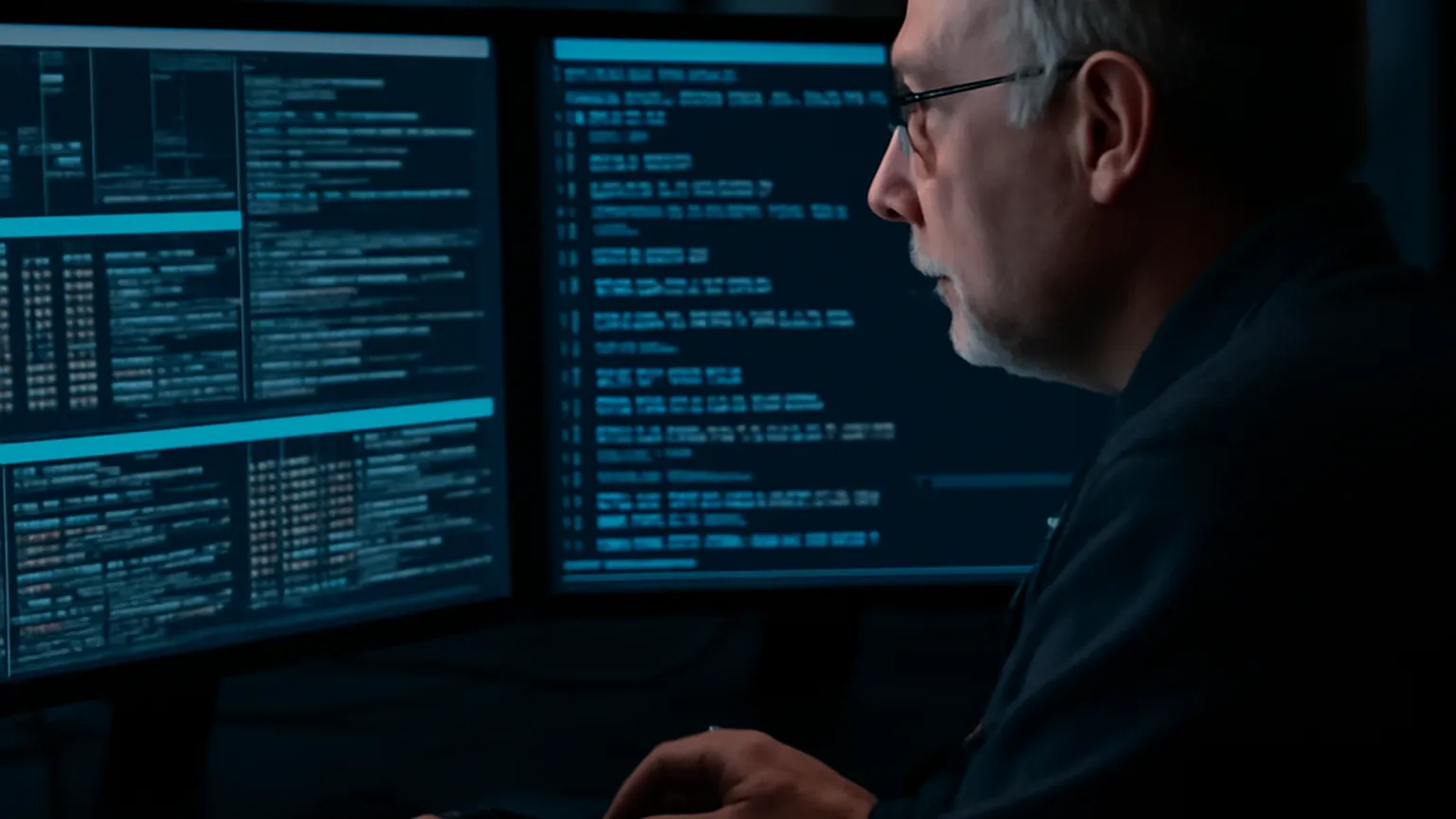
Marcus Webb has spent 14 years managing Linux servers for mid-size companies, from early Debian deployments to today’s container-heavy infrastructure. He now leads a small systems team in Manchester and mentors junior admins learning the terminal for the first time. Marcus is a composite profile built from common patterns we see across working sysadmins, used here to give beginners a realistic, honest workflow rather than a generic list of commands.
Meet Marcus Webb: 14 years of Linux systems administration
You’ve been doing this for 14 years. What’s changed the most?
The infrastructure, definitely — I started on bare-metal Debian boxes racked in a server room, and now half of what I manage is containers and orchestration layers on top of Linux. But the terminal itself has barely changed. The commands I typed in 2012 are still the commands I type today. That’s actually reassuring for anyone starting now: what you learn on day one will still be relevant in ten years.
Do you still use the terminal daily, or has tooling replaced it?
Daily, constantly. Dashboards and monitoring tools give you the overview, but when something is actually broken, you’re SSH’d into a box with a terminal open. No graphical tool replaces grep-ing through a log file at 2am to find the one line that explains why a service crashed.
Why generic command lists don’t teach real workflows
A lot of “Linux commands cheat sheet” articles are just alphabetical lists. What’s wrong with that approach?
They teach syntax without context. Knowing that grep searches text is useless if you don’t know when you’d reach for it, or what you’d pipe into it first. A beginner reading an alphabetical list learns fifty commands in isolation and still can’t diagnose why a website went down.
What actually teaches you is seeing a real sequence: “the site is slow, so first I check top, then I grep the error log, then I check systemctl status on the web server.” That’s a workflow. A cheat sheet should show workflows, not just definitions. If you want the reference list to keep alongside these workflows, our 50 essential Linux commands for beginners covers the vocabulary this interview assumes you already have.
How to actually use a cheat sheet: don’t try to read one top to bottom. Keep it open in a second terminal tab and glance at it only when you hit a real task — checking a log, restarting a service, fixing permissions. The commands that matter will repeat themselves within a week, and that’s when they stick.
The commands Marcus types every single day
Walk us through a typical day. What do you actually run first?
First thing, every morning: ssh into each server I’m responsible for, then journalctl -p err -since today to see if anything logged an error overnight. That single command has saved me from more incidents than any monitoring dashboard.
Here’s roughly what my first 20 minutes look like on a normal day:
| Step | Command | Purpose |
|---|---|---|
| 1 | ssh admin@server | Connect to the server |
| 2 | journalctl -p err --since today | Check for overnight errors |
| 3 | df -h | Confirm no disk is nearly full |
| 4 | systemctl status nginx postgresql | Confirm core services are running |
| 5 | top or htop | Spot any process using abnormal CPU/RAM |
| 6 | tail -f /var/log/nginx/error.log | Watch live traffic if something looks off |
That’s a lot of commands before you’ve even started your actual work.
Exactly — and that’s the point. Most sysadmin work isn’t fixing things, it’s confirming things are fine so you can move on to actual projects. Beginners often skip this and only look at logs when something is already on fire. Building the habit of checking first is worth more than memorizing any single command.
Navigating the file system efficiently
What’s your actual navigation workflow, beyond just cd and ls?
ls -lah almost every time, not plain ls — I want permissions, human-readable sizes, and hidden files in one view. Then cd - to jump back to my previous directory, which people forget exists. And pwd more often than you’d think, especially after a long chain of cd commands in a script.
For finding things, find /var/log -name "*.log" -mtime -1 — find files modified in the last day — comes up constantly when I’m trying to figure out what changed recently on a system I didn’t configure myself.

A short list of navigation habits worth building early:
cd -to toggle between your last two directories instantlyls -lahas your default, not plainlsfind <path> -mtime -Nto locate recently modified filespwdafter any script or alias that changes directories, to confirm where you actually landed- Tab-completion for everything — typing full paths by hand is a habit worth breaking immediately
Our guide to the Linux terminal for beginners covers these navigation basics in more depth if you’re just starting out.
Checking logs and diagnosing problems on the fly
Logs seem to come up in almost everything you’ve described so far.
Because they’re the ground truth. Dashboards summarize, but logs tell you exactly what happened, in order, with timestamps. journalctl -u <service> -f to follow a specific service’s logs live is probably my single most-used diagnostic command.
The pattern I default to almost every time: journalctl -u nginx --since "10 minutes ago" | grep -i error. That combination — recent window, filtered by keyword — answers 80% of “why did this break” questions in under a minute.
Common log locations beginners should know: /var/log/syslog or /var/log/messages for general system events, /var/log/auth.log for login attempts and SSH activity, and journalctl for anything managed by systemd. If a service won’t start, journalctl -u <service> -n 50 --no-pager showing the last 50 lines is almost always the first move.
Managing services with systemctl and journalctl
Most modern distros use systemd. What does that change day to day?
Everything about service management runs through systemctl now. Starting, stopping, restarting, checking status, and enabling a service at boot are all one consistent command family, which is genuinely nicer than the older init scripts.
The core set I use daily:
systemctl status <service>— is it running, and what did it just log?systemctl restart <service>— the most common fix for a hung servicesystemctl enable <service>— make sure it survives a rebootsystemctl list-units --failed— show everything that’s currently broken, system-wide
That last one is underused by beginners. Running systemctl list-units --failed first thing gives you an instant list of every failed service on the box, before you even go looking for a specific problem.
Combining commands with pipes and redirection
You mentioned grep and pipes earlier as the most-used pattern. Can you expand on that?
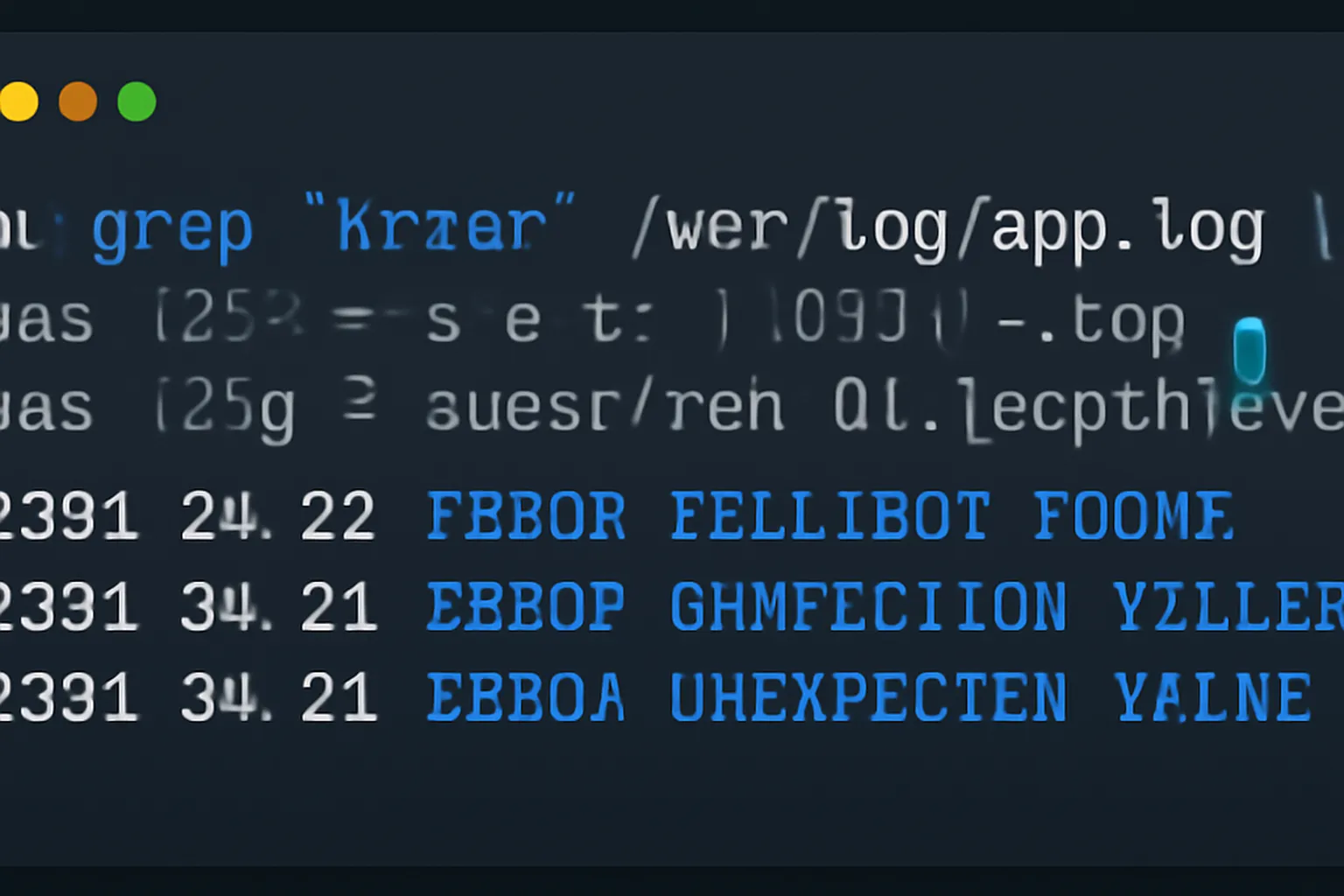
Pipes (|) are what turn individual commands into a real workflow. ps aux | grep nginx — list every process, then filter for the one I care about — is a pattern I use dozens of times a day, just with different commands on either side of the pipe.
The mental model that helped me most as a junior admin: think of each command as doing one small, specific job, and pipes as the conveyor belt connecting them. cat access.log | grep "500" | wc -l reads a log, filters for server errors, and counts them — three simple commands doing something genuinely useful together.
Redirection (> and >>) matters just as much. echo "test" > file.txt overwrites a file; >> appends. Mixing those up is one of the most common beginner mistakes — accidentally wiping a file you meant to add to.
Any pipe combinations you’d consider essential enough to teach a beginner on day one?
ps aux | grep <name> and history | grep <command> cover an enormous share of daily needs on their own. The first finds a running process; the second finds a command you know you typed recently but can’t quite remember. Beyond those two, du -sh * | sort -rh | head -10 — showing the ten largest items in a directory, sorted — is the one that saves people the most time once they discover it, especially when a disk is unexpectedly full and nobody knows why.
Permissions and ownership: commands that prevent real mistakes
Permissions trip up a lot of beginners. What’s your practical advice?
Understand chmod and chown before you copy-paste permission commands from a forum. chmod 755 file and chmod 644 file are the two you’ll use constantly, but knowing why — owner/group/other, read/write/execute — means you’ll actually reason about a permission problem instead of guessing numbers until something works.
chown user:group file for ownership changes comes up whenever a service can’t read its own configuration or data directory — a genuinely common cause of “it worked yesterday” bugs. Our Linux file permissions guide goes through the full permission model in detail, which is worth reading properly rather than picking it up piecemeal from Stack Overflow answers.
Any permission command you consider dangerous for beginners?
chmod -R 777 on anything beyond a personal test file. It’s tempting because it “makes the error go away,” but it removes all meaningful access control on that directory. If you find yourself about to run it, stop and figure out the actual permission problem instead — it’s almost always a narrower fix.
Building your own personal cheat sheet
You mentioned building a personal cheat sheet earlier. What does yours actually look like?
A plain text file, genuinely nothing fancy, organized by task rather than alphabetically: “checking disk space,” “restarting a service,” “finding a file.” Under each heading, the exact command I use, with real flags, not the generic version from documentation.
The habit that matters more than the file itself: every time I have to look something up twice, it goes in the file. That’s the signal that a command is worth remembering permanently rather than re-searching each time.
A simple starting structure for your own cheat sheet:
- Daily checks — the handful of commands you run every morning
- Diagnostics — log commands, process commands, network commands
- File operations — the specific
find,cp, andrsyncflags you actually use - Service management —
systemctlcommands for the services you manage - “Break glass” commands — the dangerous ones you rarely need but must get right when you do
Do you keep separate cheat sheets for different environments, or one big one?
Separate, by context. One for general Linux administration, one specific to our container orchestration setup, and a small one for the handful of network appliances I still manage that don’t run a full Linux distribution. Trying to keep everything in one document made it too long to be useful — I’d rather flip between three short files than scroll through one enormous one.
The other advantage of separating them: I can hand the general administration cheat sheet to a junior admin on day one without also handing them commands specific to infrastructure they haven’t touched yet. It’s onboarding material as much as a personal reference.
Advice for beginners nervous about the terminal
What would you tell someone who’s intimidated by the command line?
That the fear is proportional to how permanent mistakes feel, and most mistakes on a personal machine or test server are entirely recoverable. Read a command fully before running it, especially with sudo. If you don’t understand a flag, look it up before running the command, not after.
Start small. Master ls, cd, cat, and grep before worrying about anything more advanced — those four alone will get you through most beginner tasks. If you want to keep exploring beyond the terminal, our Linux terminal productivity tricks article covers shortcuts and habits that build naturally once the basics feel comfortable. And once you’re managing anything internet-facing, our Linux security basics guide is worth reading before you expose a service publicly.
Is there a point where someone stops being a “beginner” with the terminal?
Honestly, no clean line — but a useful marker is the moment you start writing your own small scripts to automate something repetitive, rather than only running commands one at a time. That’s usually six months to a year into regular use for someone who works with Linux daily. It’s less about the number of commands you know and more about recognizing patterns: seeing a repetitive task and immediately thinking “this should be a script,” rather than doing it manually five times before the idea occurs to you.
Any final advice specifically for someone managing their first server, rather than just using a Linux desktop?
Set up your cheat sheet from day one, even a short one. Write down the very first commands you have to look up, because those are exactly the ones you’ll need again within the week. And don’t skip the boring parts — checking logs, understanding permissions, reading man pages — because that’s precisely the knowledge that turns a script-follower into someone who can actually diagnose an unfamiliar problem at 2am without panicking.
For readers who also want lightweight, free tools to pair with a solid terminal workflow on a secondary Windows machine, softaid.net’s list of free open-source software covers free open-source tools that pair well with a solid terminal workflow.
The terminal rewards repetition, not talent. Every sysadmin you’ll ever meet, including me, learned this exact same way — one command, misused a few times, until it became automatic.