A Linux home server gives you a private, self-hosted platform for file storage, media streaming, website hosting, and much more. You control your data completely, pay no subscription fees, and gain practical experience with server management that applies directly to professional work. For inspiration and honest advice from someone who has been doing this for years, read our interview with a self-hosting enthusiast who runs a complete cloud, email and media stack from home.
The hardware barrier is lower than most people think. An old laptop, a spare desktop, or a Raspberry Pi can run a perfectly capable home server. This guide covers everything from hardware selection to running your first services.
Why a Linux home server?
Before setting up any server, it helps to know what you want it to do. Common home server use cases in 2026:
Network file storage (NAS): Store files centrally and access them from any device on your home network. Better than plugging a USB drive into each computer separately.
Media server: Stream movies, TV shows and music from your own storage to any TV, phone or computer in your home — no subscription required.
Personal website or blog: Host your own website from home or a cheap VPS. Learn web server administration in a real environment.
Home automation: Run Home Assistant to automate smart home devices, create schedules, and build custom dashboards.
VPN server: Create your own VPN endpoint so you can securely access your home network from anywhere.
Development environment: Run databases, web servers, and test environments locally without cluttering your main computer.
A single Linux server can run all of these simultaneously if it has enough resources.
Choosing your hardware
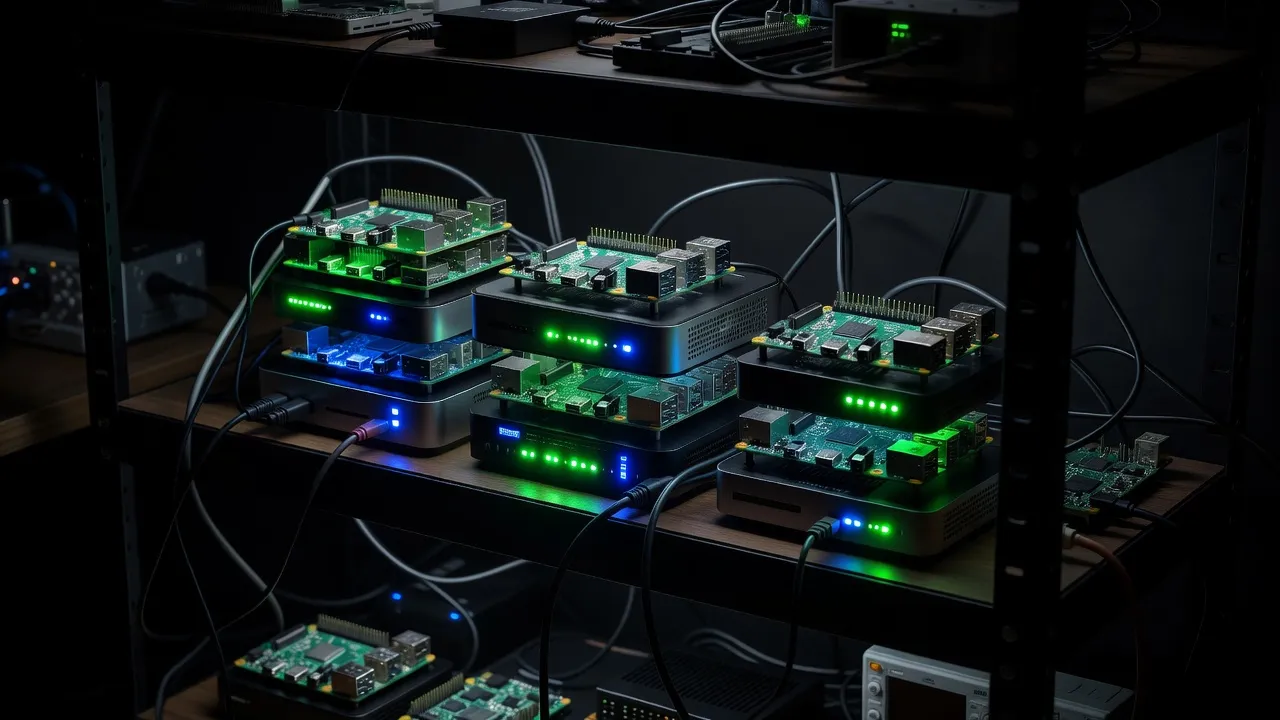
Raspberry Pi 4 or 5 is the most popular choice for a home server in 2026. The Pi 5 with 4GB or 8GB RAM is powerful enough for file sharing, media serving, Home Assistant, and light web hosting. The major advantages are low power consumption (around 5-10 watts), small size, and low noise. The main limitation is the ARM processor, which occasionally causes compatibility issues with some software.
Old desktop or laptop (2012 onwards) works well if you already have one spare. An Intel Core i5 or AMD equivalent with 8GB RAM can handle multiple services simultaneously. An old desktop running 24/7 uses more power than a Pi (typically 30-80 watts), but the x86 architecture gives you full software compatibility.
Mini PC (Intel NUC, Beelink, GMKtec) — compact x86 computers with low power consumption. A good middle ground between Raspberry Pi and a full desktop. Typically 10-20 watts at idle.
Minimum requirements:
- 2GB RAM for a single-purpose server
- 4GB RAM for running multiple services simultaneously
- 8GB RAM if you plan to run media transcoding (Jellyfin/Plex)
- Storage depends entirely on what you plan to store
Installing Ubuntu Server
Ubuntu Server LTS is recommended for beginners. It has the largest community, the most tutorials, and five years of security updates per release.
Download: Visit ubuntu.com/download/server and download the Ubuntu Server 24.04 LTS ISO.
Create a bootable USB: Use Rufus (Windows) or Etcher (any OS) to write the ISO to a USB drive.
Install: Boot from the USB and follow the installer. Key choices:
During installation, you will be prompted to choose a profile and optional server snaps. For now, skip optional snaps and just complete the base installation. You can add services later.
Make sure to install the OpenSSH server when asked — this lets you manage your server remotely:
# If you missed it during installation:
sudo apt install openssh-server
The server installation does not include a graphical desktop — this is intentional. A server is managed through the terminal, either directly or remotely via SSH. No desktop environment means fewer resources wasted and a simpler security profile.
First setup: SSH, updates and firewall
After installing, find your server’s IP address:
ip addr show
# Look for the line starting with "inet" on your network interface
# Example: inet 192.168.1.105/24
Now you can connect from any other computer on your network:
ssh username@192.168.1.105Once connected via SSH, run the first round of updates:
sudo apt update && sudo apt upgrade -yEnable the firewall and allow SSH:
sudo ufw enable
sudo ufw allow ssh
sudo ufw status
For basic security practices on your server, see our guide on Linux security basics.
Setting up a file server with Samba
Samba lets Linux share files with Windows, macOS, and other Linux computers using the standard network sharing protocol. Devices see your server as a network drive.
Install Samba:
sudo apt install sambaCreate a shared directory:
mkdir -p /home/alice/sharedConfigure Samba — edit the configuration file:
sudo nano /etc/samba/smb.confAdd this at the end of the file:
[MyShare]
   path = /home/alice/shared
   browseable = yes
   read only = no
   valid users = alice
Set a Samba password (separate from your Linux password):
sudo smbpasswd -a aliceRestart Samba:
sudo systemctl restart smbd nmbd
sudo ufw allow samba
Your shared folder now appears on your network. On Windows, open File Explorer and type \\192.168.1.105\MyShare in the address bar. On macOS, use Finder > Go > Connect to Server > smb://192.168.1.105/MyShare.
Running a media server with Jellyfin
Jellyfin is an open-source media server that organizes your movies, TV shows and music and streams them to any device — no subscription required.
Install Jellyfin:
curl https://repo.jellyfin.org/install-debuntu.sh | sudo bashAllow the port through the firewall:
sudo ufw allow 8096Access the web interface:
Open a browser on any device and navigate to http://192.168.1.105:8096. The first-time setup wizard walks you through:
- Creating an admin account
- Adding your media libraries (point to where your movies, TV shows and music are stored)
- Configuring playback settings
Jellyfin automatically scans your media, downloads artwork and metadata, and organizes everything. On mobile devices, install the Jellyfin app. On TVs, use the app on Apple TV, Fire TV, Android TV, or Chromecast.
For smooth playback without transcoding (converting video formats on the fly), ensure your clients support the video format directly. If transcoding is needed, an Intel Quick Sync-capable CPU handles it efficiently.
Hosting a personal website with Apache
Apache is the most widely used web server on Linux. Setting up a basic website takes a few minutes:
Install Apache:
sudo apt install apache2
sudo ufw allow 'Apache'
Apache starts automatically. Visit http://192.168.1.105 in a browser — you should see the Apache default page.
Replace the default page with your own:
sudo nano /var/www/html/index.htmlWrite basic HTML, save the file, and refresh your browser. Your page appears immediately.
File permissions for the web directory:
sudo chown -R www-data:www-data /var/www/html/
sudo chmod -R 755 /var/www/html/
For a more complete setup with domain names, HTTPS, and virtual hosts, additional configuration is needed — but this basic setup is enough to learn web server fundamentals.
Setting up remote access with Tailscale
Tailscale is a VPN service that connects your devices in a secure private network, accessible from anywhere in the world — with no port forwarding or complex router configuration required.
Install Tailscale on your server:
curl -fsSL https://tailscale.com/install.sh | sh
sudo tailscale up
Follow the authentication link that appears (opens in your browser to log in with Google or GitHub).
Install Tailscale on your laptop or phone (available for Windows, macOS, iOS, Android, and Linux).
Once both devices are connected to the same Tailscale network, your server appears as 100.x.x.x on the Tailscale network. You can SSH to it, access Jellyfin, and use Samba — exactly as if you were on your home network, from anywhere in the world.
Tailscale is free for personal use with up to three users and 100 devices.
Automating tasks with cron
Cron is the task scheduler built into every Linux system. It lets you run commands automatically at scheduled times — daily backups, weekly updates, periodic cleanup tasks.
Edit your crontab:
crontab -eThe format is: minute hour day month weekday command
# Update system packages every Sunday at 3:00 AM
0 3 * * 0 sudo apt update -qq && sudo apt upgrade -y -qq

# Run a backup script every day at 2:00 AM
0 2 * * * /home/alice/scripts/backup.sh

# Clear /tmp every Monday at 4:00 AM
0 4 * * 1 find /tmp -type f -mtime +7 -delete
Use * for “every” in that position. So 0 2 * * * means “at 2:00 AM every day”.
Monitoring your server
Once your server is running services, you want to monitor its health:
System resource usage:
htop               # interactive process monitor (install: sudo apt install htop)
df -h              # disk space usage
free -h            # RAM usage
Service status:
sudo systemctl status smbd         # Samba
sudo systemctl status jellyfin     # Jellyfin
sudo systemctl status apache2      # Apache
Log files for troubleshooting:
sudo journalctl -f                         # live system log
sudo journalctl -u jellyfin -n 50          # last 50 lines of Jellyfin log
sudo tail -f /var/log/apache2/error.log    # Apache error log
Running a home server is one of the most effective ways to build practical Linux skills. Every problem you encounter — configuring services, managing permissions, troubleshooting network issues — mirrors real-world system administration tasks. The knowledge transfers directly to professional Linux work.