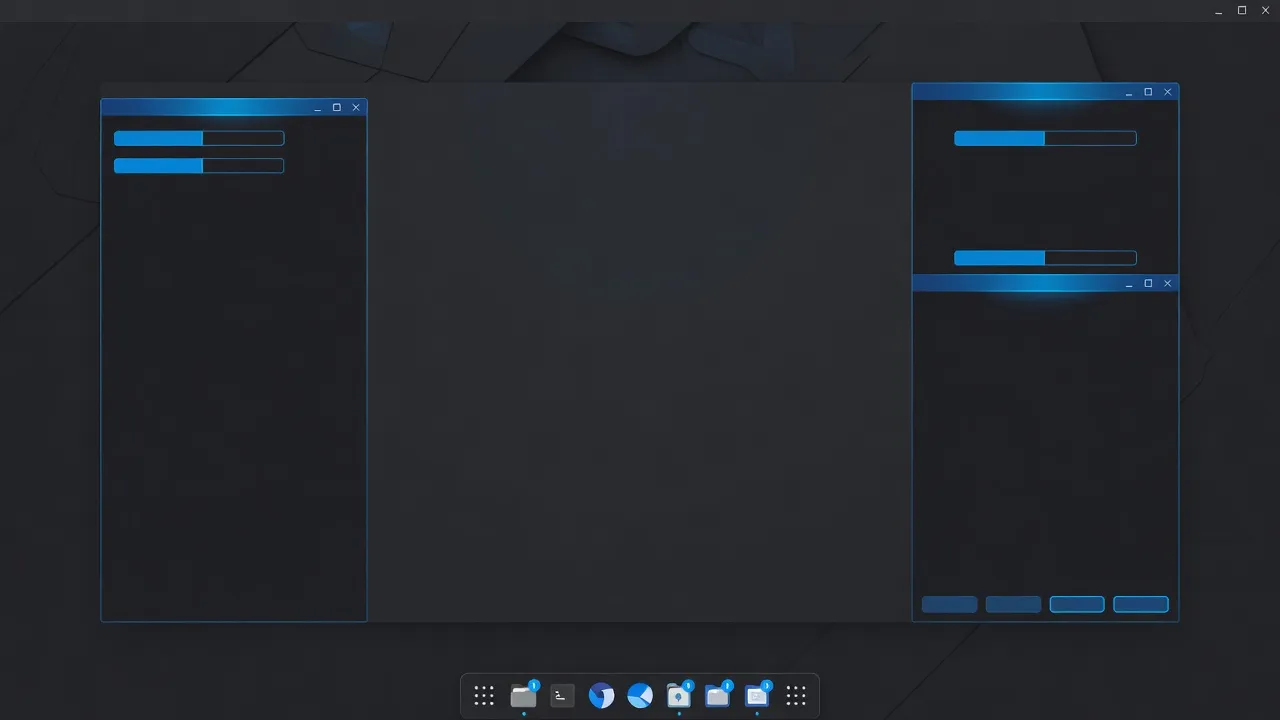
One of the most satisfying aspects of using Linux is the level of visual customization available. Unlike Windows or macOS, where you can change a wallpaper and some accent colors, Linux lets you completely transform your desktop — different window style, icon set, fonts, panel layout, and behavior. You can make Linux look like Windows, macOS, or something entirely unique.
This guide focuses on the three most popular desktop environments for customization: GNOME, KDE Plasma, and XFCE.
Understanding desktop environments
A desktop environment (DE) is the complete graphical system that runs on top of the Linux kernel. It includes the window manager (which handles how windows look and behave), a file manager, a panel or taskbar, system settings, and often a suite of companion applications.
The major desktop environments available in 2026:
GNOME — Clean, modern, opinionated. This is the default on Ubuntu, Fedora, and many other distributions. GNOME has a distinctive design with a top bar and no traditional taskbar by default. It is highly customizable through extensions.
KDE Plasma — The most flexible and feature-rich desktop environment. KDE Plasma offers granular control over almost every visual element. It is the default on Kubuntu, openSUSE, and KDE Neon.
XFCE — Lightweight and traditional. XFCE looks and behaves like older Windows versions, with a taskbar at the bottom and a classic menu. It is fast, stable, and perfect for older hardware.
Cinnamon — Used by Linux Mint, Cinnamon feels familiar to Windows users. Good customization options without the complexity of KDE.
MATE — A traditional desktop that does not change much. Stable and predictable.
You can have multiple desktop environments installed and choose which one to use at the login screen. This lets you experiment without committing.
Customizing GNOME
GNOME’s default settings application handles basic preferences: wallpaper, dark/light mode, notifications, and display settings. For deeper customization, you need two additional tools: GNOME Tweaks and GNOME Extensions.
Install GNOME Tweaks:
sudo apt install gnome-tweaksOpen GNOME Tweaks from your applications menu. Here you can:
- Change the shell theme, application (GTK) theme, and icon theme
- Adjust fonts and font sizes for the desktop and applications
- Move window buttons (minimize, maximize, close) to the left or right
- Enable or disable desktop icons
- Set up custom keyboard shortcuts
- Control animation speed or disable animations
Change your wallpaper:
Right-click the desktop and select “Change Background”, or go to Settings > Appearance. You can also use any image file — right-click an image in Files (Nautilus) and select “Set as Wallpaper”.
Installing GNOME extensions
GNOME Extensions are small add-ons that modify or extend GNOME’s behavior. They range from visual tweaks to functional additions that completely change how you interact with the desktop.
The GNOME Extensions website (extensions.gnome.org) is the official source. Install extensions through the website using the browser integration, or install them from the command line:
sudo apt install gnome-shell-extensionsPopular extensions worth trying:
Dash to Panel — Converts the GNOME top bar and app dock into a single Windows-style taskbar at the bottom of the screen. Makes GNOME feel much more familiar to Windows users.
Arc Menu — Adds a traditional application launcher menu to GNOME, replacing the Activities overview.
Blur my Shell — Adds a blur effect to the top bar and other GNOME UI elements for a modern translucent look.
Just Perfection — A comprehensive GNOME tweaking extension that lets you show or hide almost any UI element.
User Themes — Required to install custom shell themes (the top bar and overview). Without this extension, you can only change the application (GTK) theme.
To manage installed extensions, visit extensions.gnome.org in your browser or use the GNOME Extensions application:
sudo apt install gnome-shell-extension-managerCustomizing KDE Plasma
KDE Plasma offers the most powerful built-in customization of any Linux desktop environment. Most settings are available through System Settings without installing anything extra.
Open System Settings from the application menu. The key sections for customization:
Appearance > Global Theme: Apply a complete theme pack that changes the window decoration, colors, cursor, icons, and sounds all at once. KDE ships with several built-in themes.
Appearance > Application Style: Changes the style of widgets inside applications (buttons, text fields, checkboxes). Breeze is the KDE default.
Appearance > Plasma Style: Controls the appearance of panels, notifications, and the KDE-specific UI elements.
Appearance > Colors: Full color scheme control — adjust every individual color used in the interface.
Appearance > Window Decorations: The title bar and borders of windows. You can use custom decorations downloaded from the KDE Store.
Appearance > Icons: Install and select icon packs.
Appearance > Cursors: Change the mouse cursor.
To download additional themes directly from within System Settings:
Click “Get New [Themes/Icons/Window Decorations…]” buttons found throughout the Appearance sections. This opens a dialog that connects to the KDE Store and lets you browse, preview, and install community-created themes.
Customizing the Panel (taskbar):
Right-click the panel and select “Edit Panel”. This unlocks an editor where you can:
- Add or remove widgets (clock, volume, system tray, etc.)
- Resize and reposition the panel
- Change the panel height and behavior (auto-hide, always visible)
- Add additional panels
KDE Plasma also supports desktop widgets — interactive elements you can place directly on the desktop, like clocks, weather displays, notes, and system monitors.
XFCE customization
XFCE is deliberately minimal, but it still offers solid customization options through its Settings Manager.
Open the Settings Manager from the application menu or run:
xfce4-settings-managerKey settings for customization:
Appearance: Change the GTK theme (how application windows look) and icon pack. XFCE ships with a small selection, but you can install more.
Window Manager: Controls the title bar style, window borders, and keyboard shortcuts for window management. The “Style” tab lets you change the window decoration theme.
Panel: XFCE’s panel is highly configurable. Right-click the panel and select “Panel > Panel Preferences”. You can:
- Add/remove panels (multiple panels are supported)
- Add items to panels by clicking the ”+” button in Panel Preferences
- Reorder items by dragging
- Configure each item individually
Desktop: Right-click the desktop to set wallpaper, icon arrangements, and right-click menu options.
Installing Thunar plugins extends the XFCE file manager:
sudo apt install thunar-archive-plugin
sudo apt install thunar-media-tags-plugin
Where to find themes and icon packs
The two main sources for Linux themes are:
GNOME-Look.org (gnome-look.org) — Despite the name, this site has themes, icons, cursors and wallpapers for all desktop environments. It has been the primary community hub for Linux visual assets for over two decades. Organized by category: GTK themes, icon themes, cursor themes, shell themes (GNOME), window manager themes, etc.
KDE Store (store.kde.org) — The official source for KDE themes, accessible directly through KDE’s System Settings. Well-organized with ratings, screenshots and easy installation.
GitHub — Many theme developers host their work on GitHub. Search for “KDE plasma theme”, “GNOME shell theme”, or “GTK theme” to find many options. GitHub themes often have more frequent updates than the theme sites.
Popular icon packs worth trying: Papirus (well-maintained, many styles), WhiteSur (macOS-style), Fluent (Windows 11-style), Candy Icons (colorful and playful).
Installing themes
The installation method depends on the desktop environment.
GNOME themes via Tweaks:
- Download the theme archive (.tar.gz or .zip) from GNOME-Look.org
- Extract it to
~/.themes/for GTK themes or~/.icons/for icons
mkdir -p ~/.themes ~/.icons
# Extract your downloaded GTK theme:
tar xzf theme-name.tar.gz -C ~/.themes/
# Open GNOME Tweaks and select the theme from the dropdown
KDE themes:
The easiest method is through System Settings > Appearance > Get New Themes (internet connection required). For manual installation:
# GTK themes (affects non-KDE apps):
mkdir -p ~/.local/share/themes
tar xzf gtk-theme.tar.gz -C ~/.local/share/themes/
XFCE themes:
mkdir -p ~/.themes
tar xzf theme.tar.gz -C ~/.themes/
# Then apply via Settings Manager > Appearance
Customizing fonts
Fonts have a significant impact on how your desktop looks and feels. All desktop environments let you change the system fonts.
Install additional fonts:
sudo apt install fonts-noto           # Noto fonts (Google, excellent Unicode coverage)
sudo apt install fonts-open-sans      # Open Sans
sudo apt install fonts-firacode       # Fira Code (monospace with ligatures, great for terminals)
Or download TTF/OTF font files and install them manually:
mkdir -p ~/.local/share/fonts
cp *.ttf ~/.local/share/fonts/
fc-cache -fv                          # refresh font cache
Good font choices for a clean desktop: Noto Sans for the interface, Noto Serif for documents, and Fira Code or JetBrains Mono for the terminal.
Setting up your workspace
Beyond visual themes, workspace organization significantly impacts productivity.
Multiple virtual desktops (workspaces): All major desktop environments support virtual desktops, letting you group applications into different spaces. Use keyboard shortcuts to switch: Ctrl+Alt+Arrow (GNOME and XFCE), Meta+Ctrl+Arrow (KDE).
Auto-hide the panel: If you prefer maximum screen space, configure your panel to auto-hide. Right-click the panel or go to panel settings.
Keyboard shortcuts: Every desktop environment lets you define custom shortcuts. Set shortcuts for opening the terminal, launching your browser, or switching workspaces. These small investments in setup save significant time.
Going further
The level of customization described here barely scratches the surface of what is possible on Linux. Advanced users explore:
- Tiling window managers (i3, Sway, Hyprland) — replace the desktop environment entirely with a keyboard-driven system that automatically arranges windows
- Conky — a system monitor that displays CPU, RAM, network and disk usage directly on the desktop
- Polybar — a highly customizable status bar for tiling window managers
- Custom dotfiles — version-controlled configuration files that let you reproduce your exact setup on any machine
Start with the basics covered in this guide and expand from there as you grow more comfortable. To learn about installing additional software to enhance your setup, see how to install software on Linux.